


Categories
- News (236)
- Support (262)
- OEM & ODM (10)
- Drivers & Tools (10)
- Instructions (29)
- Troubleshooting (44)
- Knowledge (97)
- Maintainance (8)
- Blog (90)
Restoring to factory settings means restoring the Windows POS system, software, data, and settings to the factory state, which can solve some problems caused by system damage, virus infection, slow operation, etc. The Sunany engineering team summarized the following methods:
Method 1: System settings:
The method of using the system’s built-in reset function is relatively simple and convenient. It does not require additional installation media or tools and can be completed in just a few steps. The specific operations are as follows:
1. Open the Start menu, select “Settings”, and then select “Update and Security”;
2. In the “Update and Security” interface, select the “Recovery” option, and then click the “Start” button under the “Reset this PC” section.
3. Select “Keep my files” or “Remove everything”.Follow the instructions on the screen to complete the reset.
Method 2: Advanced startup options:
If the system cannot be started normally, you can restore it through the advanced startup options. The specific steps are as follows:
1. Restart the Windows POS system;
2. During the boot process, repeatedly press the designated key (such as F8 or F11) to access the advanced startup options;
3. Select “Troubleshoot” and click “Reset this PC”;
4. Select “Keep my files” or “Remove everything” and follow the on-screen instructions.
Method 3: Installation media:
In many cases, using the Windows POS system’s built-in recovery function may not solve the problem. At the time, you can use the installation media to recover. The specific steps are as follows:
1. Insert the Windows installation media (DVD or USB) into your POS system;
2. Restart the system and access the boot menu by pressing the designated key (such as F12);
3. Select the installation media as the startup device;
4. Follow the on-screen instructions until you reach the installation screen.
5. Select “Repair your computer” and select “Troubleshoot” > “Reset this PC”;
6. Select the reset option (“Keep my files” or “Remove everything”) and continue the reset.
After restoring to factory settings, the Windows POS system will become like a new one, but all personal files and applications will be deleted, so Sunany recommends that you back up important data in the Windows POS system before performing the operation.
 DDR4 vs. DDR5 for POS Software: Which Is the Better Choice?
 Before a POS SSD Replacement, Prepare the Software Restore
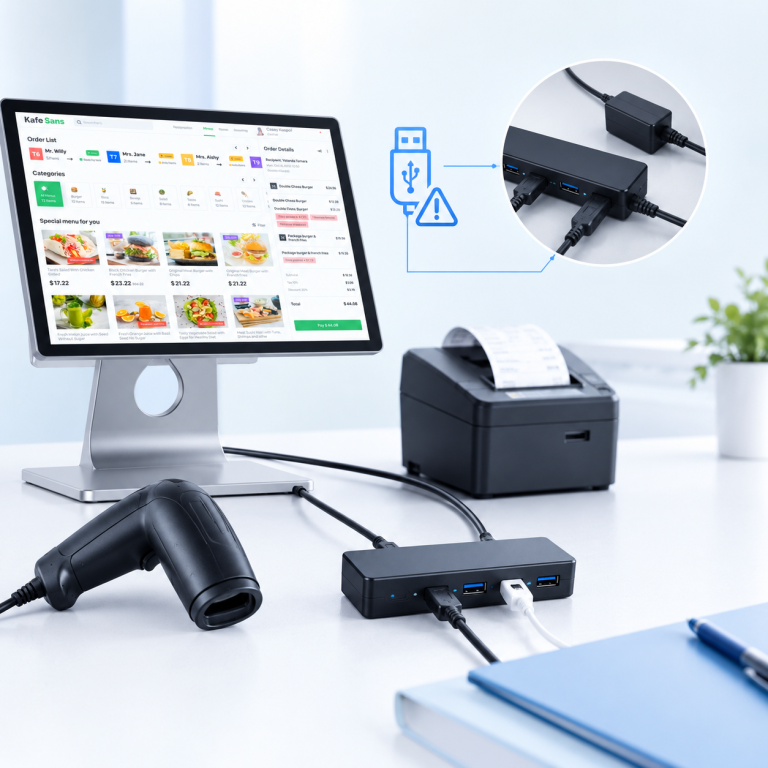 A Simple USB Hub Test for POS Device Disconnections
 Why Is Your POS Cash Drawer Not Opening
 Why Is a Thermal Receipt Printer Printing Blank Receipts