


Categories
- News (236)
- Support (262)
- OEM & ODM (10)
- Drivers & Tools (10)
- Instructions (29)
- Troubleshooting (44)
- Knowledge (97)
- Maintainance (8)
- Blog (89)
Has the Bluetooth option disappeared on your Windows 11 POS system? It can happen due to various reasons, such as temporary glitches, corrupted Bluetooth drivers, or problems with the Windows 11 POS operating system. Sunany engineering team has compiled the following five tips to help you fix this problem.
1. Perform a power cycle
Performing a power cycle is the easiest step to fix this problem, and you can do it by following these steps:
Turn off the POS (unplug the power source) → Press and hold the power button (30-60 seconds) → Let the POS idle for a few minutes → Connect the power source and turn the POS back on
2. Run the appropriate Windows troubleshooter
Windows 11 has built-in troubleshooting tools that can automatically detect and fix system problems, including Bluetooth problems. You can do it by following these steps:
Press “Win + I” → Click “Troubleshoot” → Select “Additional troubleshooters” → Run “Bluetooth”
3. Check the Quick Settings Panel
Sometimes, the Bluetooth option may just be hidden. Follow these steps:
Press “Win + A” → Tap “Pencil” → Click “Add” → Select “Bluetooth”
4. Check Bluetooth settings
Check if the Bluetooth settings are disabled or hidden accidentally. Check by following these steps:
Start menu > Settings > Bluetooth and devices > More Bluetooth settings > Show Bluetooth icon in notification area > Apply > OK
5. Update or reinstall your Bluetooth driver
A damaged or outdated Bluetooth driver may cause the Bluetooth option to disappear. Here are the steps to update or reinstall the driver:
Right-click “Start” → Select “Device Manager” → Right-click “Bluetooth Adapter” → Select “Update Driver” → Select “Search Automatically for Drivers”
With the above five tips, you can effectively solve the problem of missing Bluetooth options in Windows 11 POS system. If the problem persists, it is recommended to contact the hardware vendor or technical support for further help. Of course, you can also contact the Sunany support team, we are happy to help you!
 Before a POS SSD Replacement, Prepare the Software Restore
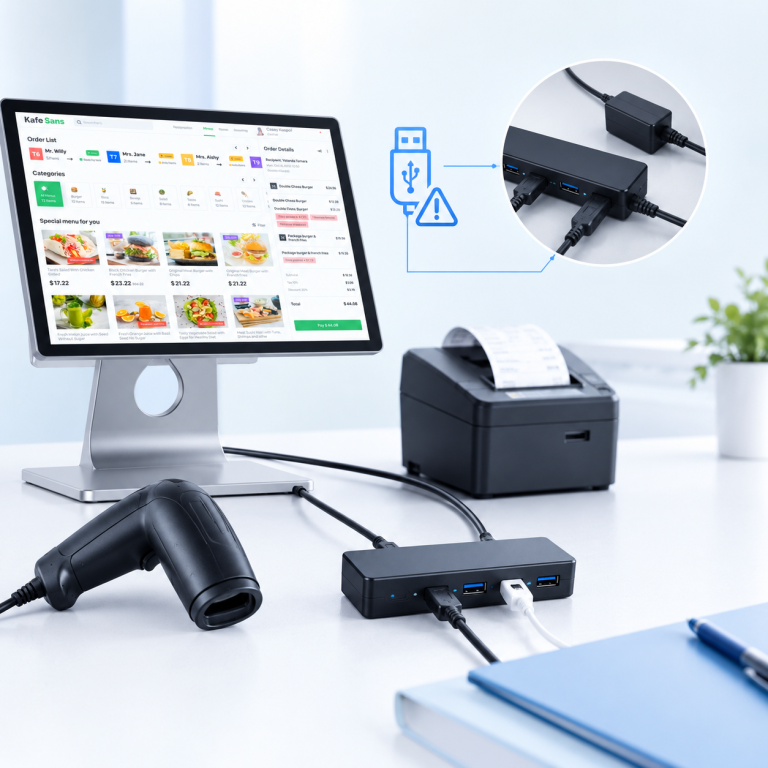 A Simple USB Hub Test for POS Device Disconnections
 Why Is Your POS Cash Drawer Not Opening
 Why Is a Thermal Receipt Printer Printing Blank Receipts
 What to Record When a Retail Checkout Terminal Restarts